Installing EasyGecNG
EasyGecNG runs on Windows. It can also run on Mac and Linux; the EasyGecNG page on GitHub explains how. EasyGecNG is a Java program, and its source code is public if your IT department wants to review it.
Our Lesson Plan Advisor knows these instructions. Tell it what you see on your screen, and it will walk you through the steps one at a time.
1. Install the SPORTident USB driver
Download the USB driver from SPORTident's software page and install it. You may also need to install the Microsoft .NET framework. Restart the computer after installing the driver.
2. Install Java 8
EasyGecNG needs Java 8. We use version 8u231. Get it from Oracle's Java 8 archive (search the page for "8u231").
Then turn off automatic Java updates, because EasyGecNG needs this older version:
- Open the Windows Control Panel and search for Java. Open the Java Control Panel.
- On the Update tab, uncheck Check for Updates Automatically.
- In the window that pops up, click Do Not Check, then OK.
3. Download EasyGecNG
- Go to github.com/Navigation-Games/EasyGecNG.
- On the right side of the page, under Releases, click the release marked with a green Latest label. (Or go straight to the releases page and find the one marked Latest.) Skip the releases named "alpha"; those are test builds.
- Under Assets at the bottom of that release, click the
.zipfile (for example,EasyGecNG-v1.1.2.zip) to download it. - Unzip it: in File Explorer, right-click the downloaded file, choose Extract All..., and extract it to a folder you'll remember.
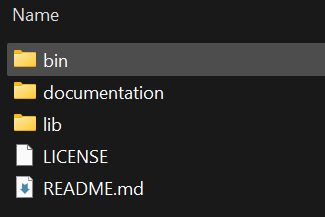
The unzipped folder has bin, documentation and lib folders inside it.
4. Start EasyGecNG
Open the bin folder and double-click EasyGecNG.bat. (If your computer hides file extensions, it's the EasyGecNG file whose type is "Windows Batch File". The other EasyGecNG file, with no extension, is for Mac and Linux.)
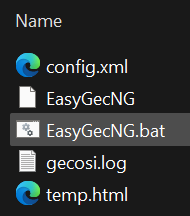
To make it easier to find in class, right-click that file and choose Send to > Desktop (create shortcut). (On Windows 11, Send to is under Show more options.)
5. Test it
Plug the mini reader into a USB port. It beeps twice. Start EasyGecNG and check that it reads an SI card (see Running EasyGecNG, steps 4 and 8 to 10). Then confirm that you can save results.
If EasyGecNG doesn't read the card, the usual fix is to choose a different COM port. See Troubleshooting.
6. Get the course files
Download the clean course files for your animal set (see Clean course files) and put them in a folder on the Desktop, such as Orienteering Courses.
Other software
These are useful but not needed to run classes:
- SPORTident Config+: for maintaining the SI boxes (checking batteries, synchronizing clocks, changing box numbers). See Maintaining the SI Boxes.
- Purple Pen: for drawing courses on a map.
- OpenOrienteering Mapper: for drawing or updating a map.
- EasyGec: the original program by Thierry Porret (website in French), as a backup if EasyGecNG has a problem. Download it from the "Télécharger" button.