Troubleshooting Electronic Timing
Use the menu for this page to select the problem you are observing.
Our Lesson Plan Advisor knows these instructions. Tell it what you see on your screen, and it will walk you through the steps one at a time.
EasyGecNG doesn't read SI cards
You put an SI card in the mini reader and nothing shows on the screen, or the mini reader doesn't beep.
-
Make sure the mini reader is plugged into a USB port on the computer. It beeps twice when you plug it in.
-
Try a different COM port. This is the most common fix. A sign you're on the wrong port: the Connect to station button (the round button at the right end of the "Reading Si-card" row) stays orange instead of turning red, and if you hold the mouse over it, it says "Connect the master station".
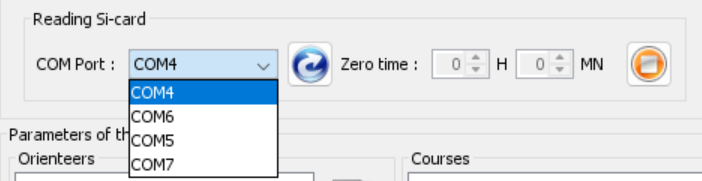
The COM Port menu, with the orange Connect to station button at the right 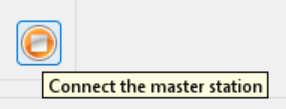
Holding the mouse over the orange Connect to station button Click the COM Port menu. If there is more than one port, you have to find the one the mini reader is using. Choose another port, click the Connect to station button, and download a card again. Try each port in the list until a card reads. When EasyGecNG is connected and reading cards, the button is red.

Red: connected and reading cards -
If the COM Port menu is blank, click the blue and white arrow next to the menu to look again. Unplug the mini reader and plug it back in. It should beep twice.

-
Check the driver. If no COM port works, the SPORTident USB driver may be missing. Install it (Installing EasyGecNG) and restart the computer. If you have SPORTident Config+, see whether it finds the mini reader; if it doesn't either, it's a driver problem.
-
Check Java. EasyGecNG needs Java 8 (see Installing EasyGecNG).
A student gets a sad face
A sad face usually means the student really did skip a checkpoint or go out of order. Often they went to the checkpoint but didn't hold the SI card in the box long enough to get a beep.
- Ask them to do the course again. Remind them how: check in at the Clear box and the Start box, visit the checkpoints in order, hold the SI card in each box until it beeps, and check in at the Finish box. If you have time, download their card in tabular view to see which checkpoints it recorded.
- Check which course EasyGecNG picked. Sometimes it guesses the wrong course for a student. In tabular view you can see which course it chose and change it by hand.
Students did the course right, but still get a sad face
If students who you know did the course correctly keep getting a sad face, or the times show the checkpoints out of order:
- Check that each box is in the right place. If two boxes are swapped, students visit them in the wrong order.
- Synchronize the boxes. Each SI box has its own clock, and the clocks drift. When one box's clock is off, EasyGecNG thinks students visited it out of order. Follow Synchronizing the SI boxes. We recommend synchronizing every 3 to 4 weeks anyway.
- Test it. Before you set the checkpoints out, put the boxes side by side and do a course yourself with only a second or two between check-ins. If you get a smiley face, the clocks are close enough.
The SI boxes don't beep
If a student says a box isn't beeping, they need to clear their SI card at the Clear box, then start again.
If a box doesn't beep for anyone, its battery may be low. See Checking batteries.
The student forgot a box
Downloading shows a mistake if a student forgot to check in at the Clear, Start or Finish box. Have them clear the card and run the course again. Try these mistakes yourself before class so you recognize them (see Practice scenarios).
EasyGecNG stops responding
Try these in order:
- Click the red Connect to station button to disconnect (it turns green), then click it again to reconnect.
- Check that a COM port is chosen (see EasyGecNG doesn't read SI cards).
- Unplug the mini reader from the USB port and plug it back in.
- Close EasyGecNG and start it again.
- Restart the computer.
- Use a clean course file. If you use the same file for too long, it builds up so much data that EasyGecNG slows down (see EasyGecNG is slow).
- Reinstall the latest USB driver from SPORTident.
EasyGecNG is slow
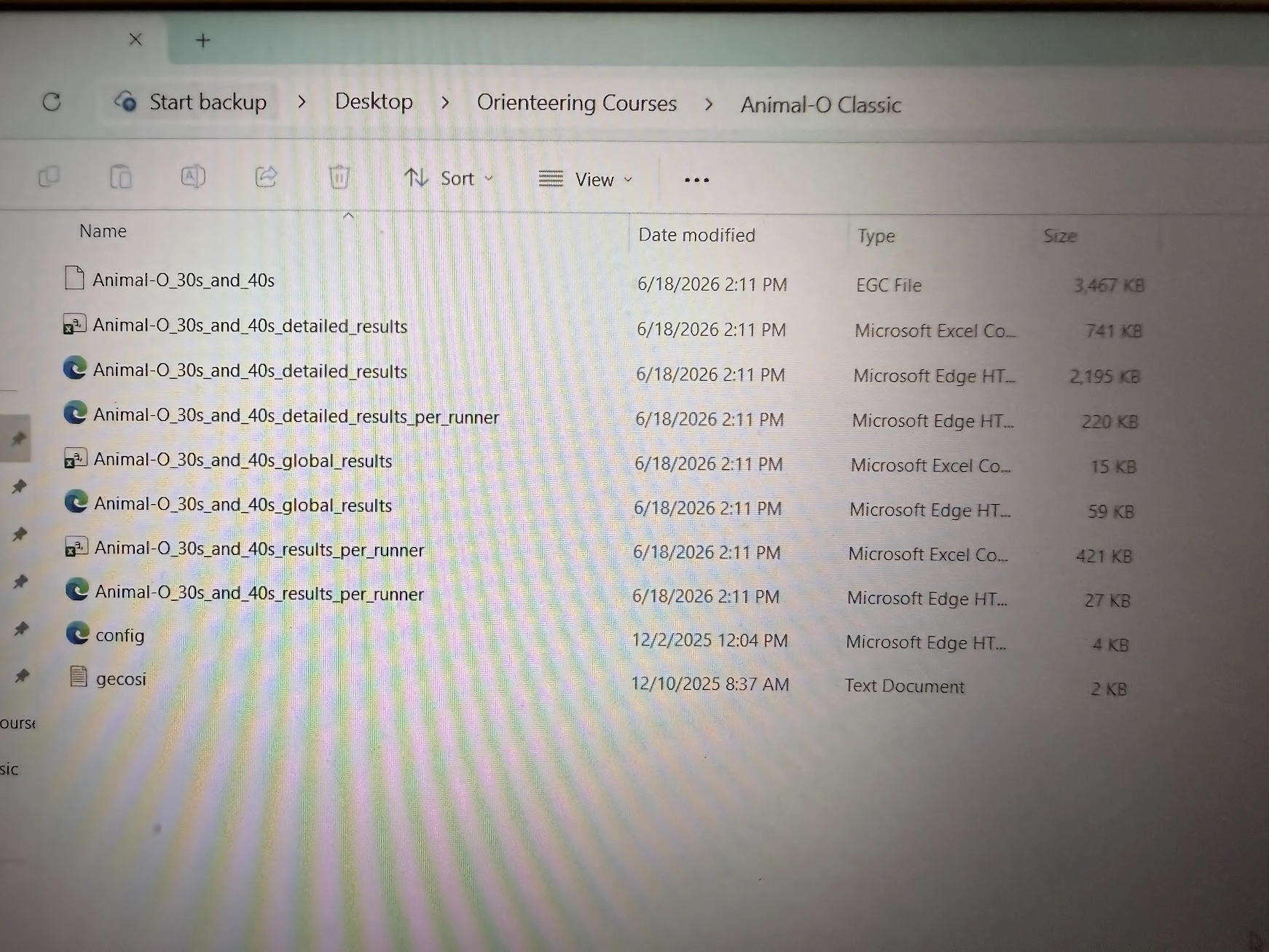
If EasyGecNG takes a long time to show results, the course file may have grown too big. Each time you save, all the results go into the .egc file, and they pile up over many classes. Look at the file's size in File Explorer. The file in this example has grown to almost 3.5 MB.
Start over with a clean course file (see Clean course files), and click No when EasyGecNG asks to save, unless you want to keep the results.
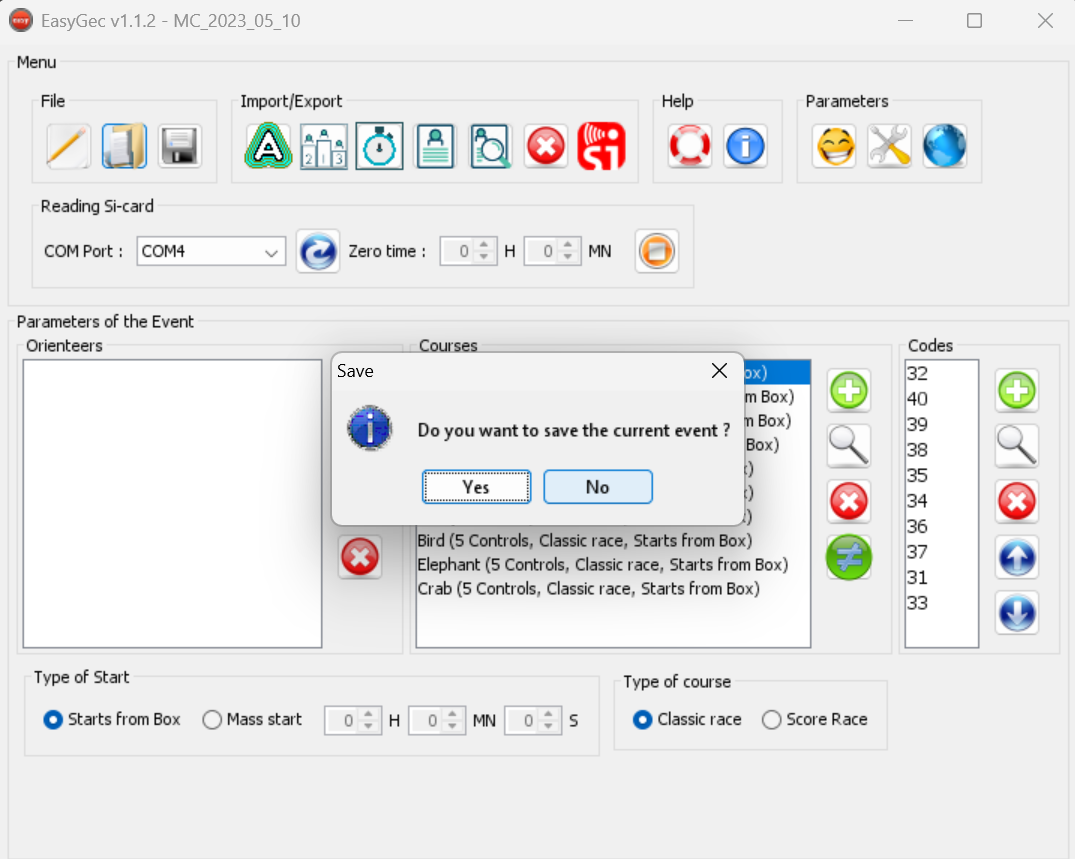
"Do you want to save the current event?"
EasyGecNG asks this when you close it or open another course file. Click No, unless you want to keep the results from this class. Saving every time makes the file grow, and big files slow EasyGecNG down.
Access denied, or can't save the file
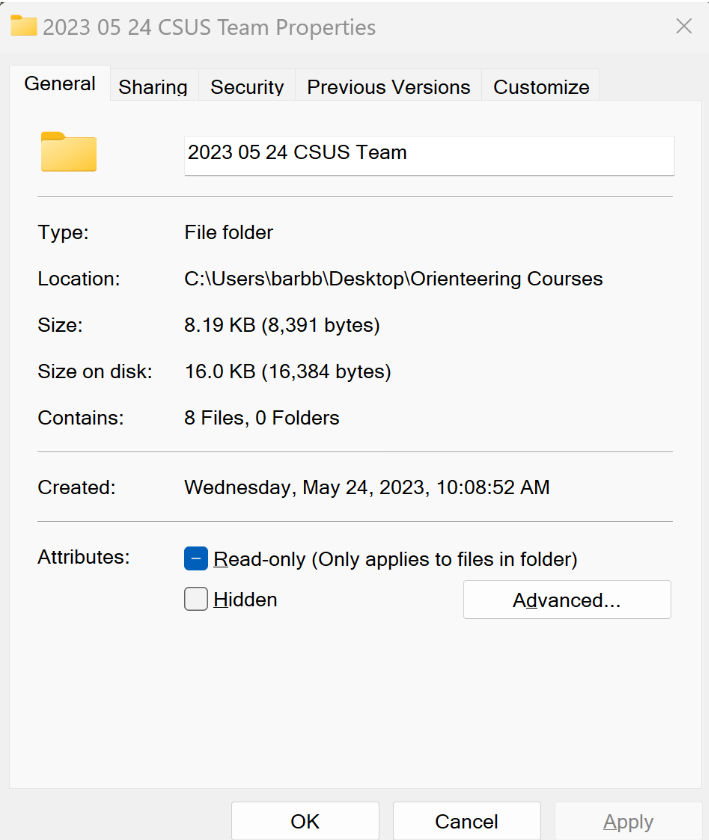
If a message pops up when students download or when you save, partly in French, saying "Erreur d'écriture" (write error) and ending in "(Access is denied)", or EasyGecNG says it can't save the file ("fichier"), the folder holding the .egc file is read-only.

To fix it:
-
In File Explorer, go to the folder that holds the
.egcfile. The message shows its location. -
Right-click the folder and choose Properties.
-
Near the bottom, next to Read-only, look at the box. If it's checked or filled in, click it until it's empty, then click OK.
-
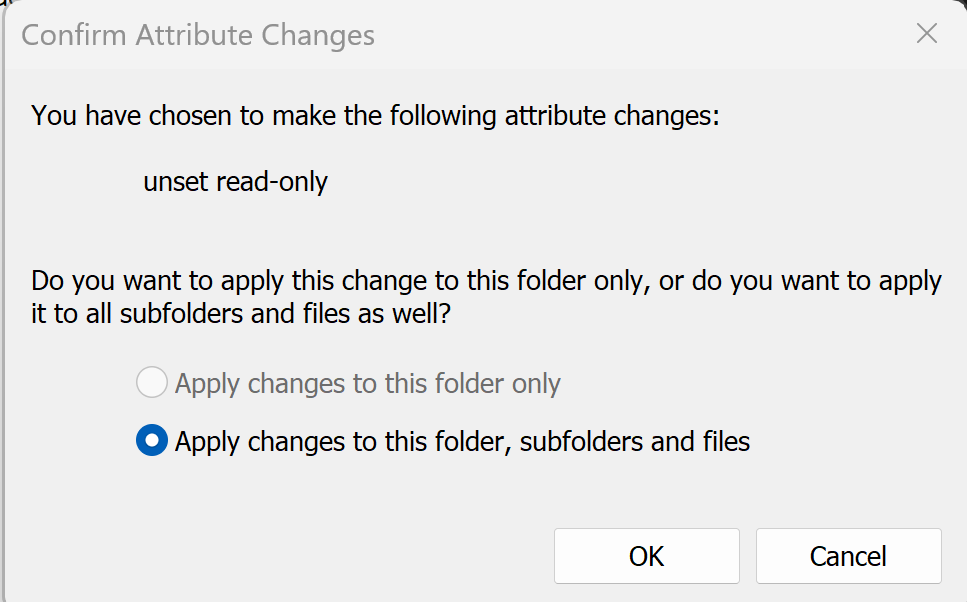
If Windows asks whether to apply the change to all subfolders and files, choose Apply changes to this folder, subfolders and files and click OK.
Still stuck?
Contact Navigation Games and tell us what you see on the screen. A photo of the screen helps.